⚡
Tap to connect
Choose a node and tap once, no configuration.
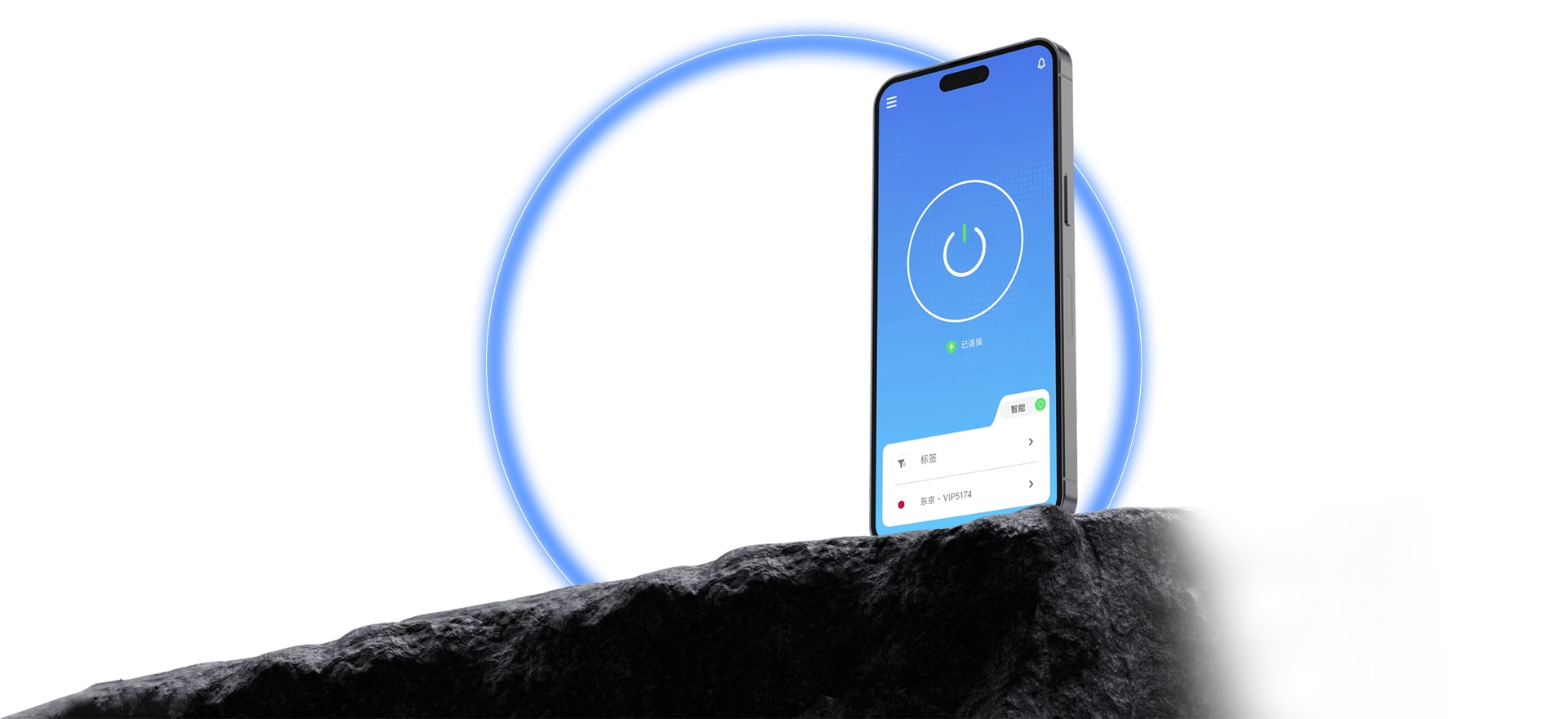
Launch QuickQ, choose a node and tap the switch. Wait for “Connected”, then open your show, match or game so it runs smoothly from the first second.
Plenty of people only think about the network once the picture freezes or a match drops. QuickQ flips that order: tap the switch in the client, confirm the status, then open the show or game. The switch and node list sit in the same place on every system, so a new device needs no relearning. Final speed still depends on home broadband, Wi-Fi signal and the destination site, so this page also covers post-connection self-tests, a node log, system tips, bandwidth guides and common terms.
Only what you actually use each day.
Choose a node and tap once, no configuration.
Nodes sorted by area so switching is obvious.
Connecting, connected and disconnected shown live.
Phone, computer and tablet share one login.
Play a short clip before you settle in.
Walkthrough and FAQ always a click away.
Pick a system to see requirements, or get the client straight away.
Get the build for your system and install it.
Log in and pick a node.
When it says Connected, play a short test.
| Use | Beforehand | If it wobbles |
|---|---|---|
| Binge-watching | Pause big downloads on other home devices | Drop the quality one notch |
| Live sport | Sit near the router on 5GHz | Refresh the stream or reconnect on another node |
| Squad games | Turn off launcher auto-updates | Switch after this round |
| Remote work | Connect early and test mic and camera | Check the local network, then contact IT |
We never claim “zero lag”; we explain what affects speed.
All three options sit on the pricing page for easy comparison.
Local network first, node second, no wasted effort.
The longer the term, the lower the monthly average.
¥49 per month
About ¥24.9 a month
About ¥20.8 a month
Minimum versions and installer formats.
| System | Minimum | Installer |
|---|---|---|
| Windows | Windows 10 64-bit | EXE |
| macOS | macOS 11 | DMG |
| Android | Android 8.0 | APK |
| iOS / iPadOS | See Get the Client | Follow page steps |
| Linux | Ubuntu 20.04 / Debian 11 | DEB |
Using a commuter as the example.
Connect on mobile data for news and podcasts.
Connect when the computer starts and check key sites and tools.
Pause home downloads during the evening peak, then connect to watch.
Glance at latency before the match; consider a node change after it.
We do not sell personal data or run ads.
Every price lives on the pricing page.
We say plainly what affects speed.
Guides and answers expand with each release.
Home, outdoors and public spaces each need something different.
| Network | Traits | Advice |
|---|---|---|
| Home broadband | Mostly stable, shared | Ask family to pause heavy tasks before connecting |
| Mobile data | Rises and falls with signal | Connect at full signal, avoid lifts and car parks |
| Public Wi-Fi | Shaky when crowded | Avoid peak times or switch to data |
| Office network | May restrict access | If it fails, ask the network admin first |
Answer them and you are done.
Take monthly at ¥49 and decide later.
Take annual at ¥299, about ¥24.9 a month.
Take two-year at ¥499, about ¥20.8 a month, best value.
Clear these up and skip the detours.
| Misunderstanding | Reality |
|---|---|
| Once connected, every site gets faster | Speed still depends on the site, broadband and device. |
| Switching nodes often helps | Frequent switches break the connection; check locally first. |
| High latency always means a bad node | Wi-Fi interference, background updates and server load raise it too. |
| Pricier options have more features | All three are identical apart from term and monthly cost. |
Stable device, stable connection.
A restart after long uptime helps stability.
Download the latest build from Get the Client.
Disable needless startup programs.
Overheating throttles, especially in games.
What you can adjust and what you wait out.
| Link | Symptom | Response |
|---|---|---|
| Home broadband | Slow when everyone is online | Stagger downloads, prioritise this device |
| Wi-Fi signal | Weaker through each wall | Move closer or plug in a cable |
| Node load | Crowded at evening peak | Move to a lighter regional node |
| Destination site | Site is busy | Retry later or lower the quality |
| Device performance | Old or hot and laggy | Close background apps and cool it down |
One small task a day, comfortable in seven.
Install QuickQ on your main device and connect for the first time.
Test your usual node once by day and once at night.
Sign in on your phone or tablet with the same account.
Practise “disconnect, then switch node”.
Use the FAQ Center to fix a small wobble.
Choose a term on the pricing page based on how often you use it.
How to arrange several devices at once.
| Combination | Use | Advice |
|---|---|---|
| Phone + laptop | Commute and work | Same account, connect whichever you use |
| Desktop + tablet | Games and shows | Pause tablet HD during squad games |
| Family phones | Everyday fun | Check simultaneous devices on the pricing page |
| Mac + iPhone | Creating and chatting | Test nodes on the Mac, then use on the phone |
Smooth matters, so does safe.
Shared accounts trigger odd logins and disputes.
Download only from this site's Get the Client page.
Log out of public computers when done.
Patches lower security risk.
Read the prompt and know the next move.
| Status | Meaning | Next |
|---|---|---|
| Connecting | Joining the chosen node | Wait a few seconds, do not tap repeatedly |
| Connected | Node is ready | Open your content and test it |
| Disconnected | Speed-up has stopped | Tap the switch when needed |
| Failed | Could not join this time | Check the local network, then change node |
For estimating when several people are online (typical figures).
| Use | Approx. bandwidth | Tip |
|---|---|---|
| SD video | About 3 Mbps | Mobile data is enough |
| 1080p HD | About 5–8 Mbps | Leave headroom for shared viewing |
| 4K video | About 25 Mbps | Cable or 5GHz recommended |
| Online games | 1–3 Mbps, latency matters more | Stability beats bandwidth |
| Video calls | About 2–4 Mbps | Upload matters too |
Smoother when the whole household is online.
Separate binge time and squad time.
Pause downloads while the TV streams.
Minors use it with a parent present.
Plan simultaneous devices by the pricing page.
Know what changed before choosing when to upgrade.
| Kind | Content | Advice |
|---|---|---|
| Feature update | New or refined controls | Upgrade when convenient |
| Compatibility update | Supports new systems | Follow soon after a system upgrade |
| Stability fix | Resolves crashes and freezes | Update first if you hit those |
| Node optimisation | Adjusts the node list | Re-pick a node afterwards |
Two minutes before leaving your usual network.
Follow this order through the site, from install to confident use.
Fewer clicks, smoother use.
Right-click and pin for one-click launch.
Leave QuickQ in the Dock to start anytime.
Put the icon on the first screen.
Swipe down and search QuickQ.
Match the regional node to what you want to reach.
| What you want | How to choose | Note |
|---|---|---|
| Regional shows | Pick a node near the content source | Lower latency, faster loading |
| Playing with friends | Pick a node near the game server | Check the latency figure first |
| Everyday browsing | The recommended node is fine | No need to keep switching |
| Evening peak | Pick a quieter backup node | Log day and night separately |
Words you will see in the client and FAQ.
Spend one minute confirming it works.
Check pages load without long blank waits.
Watch 30 seconds for spinning or auto-downgrade.
Look at the lobby figure; compare nodes if it swings.
Keep notes in this format for a few days to find your best node.
| Time | Node region | Experience | Note |
|---|---|---|---|
| Weekday morning | Recommended node | Pages and calls smooth | Use as default |
| Weekday evening | Backup node A | HD buffers now and then | Lower one quality step |
| Weekend afternoon | Backup node B | Steady latency | Good for squads |
| Late night | Recommended node | Smooth overall | No change needed |
Yes, those are common uses. Whether a site is reachable and smooth also depends on the site, account, device, home broadband and node.
If downloads are paused and signal is good yet it is still slow, disconnect and compare another node.
Evening is peak time, so broadband and nodes are busier; test at different times.
Pause background downloads and cloud sync, check Wi-Fi and refresh; if it persists, disconnect and change node.
Install, sign in, choose a node and tap the switch. From then on, your connection is ready.